
BlinkCam Support
How It Works
How BlinkCam watches your blink rate and reminds you to blink.
When you concentrate on a screen, you blink less often. That can leave your eyes feeling dry, tired or irritated. BlinkCam watches your blink rate as you work and gives you a gentle reminder when it drops.
1. It detects each blink
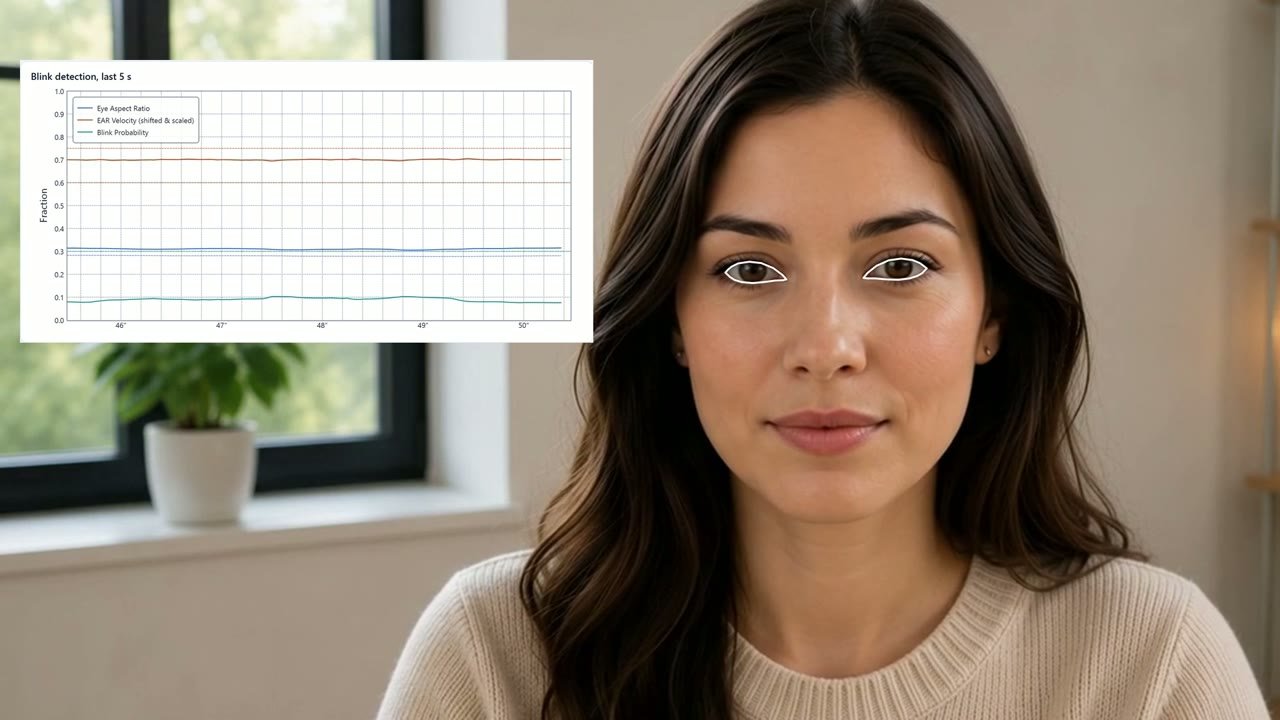
BlinkCam uses your webcam and the latest AI face tracking to follow your eyes, and detects each blink as it happens. It works with glasses.
2. It works out your blink rate
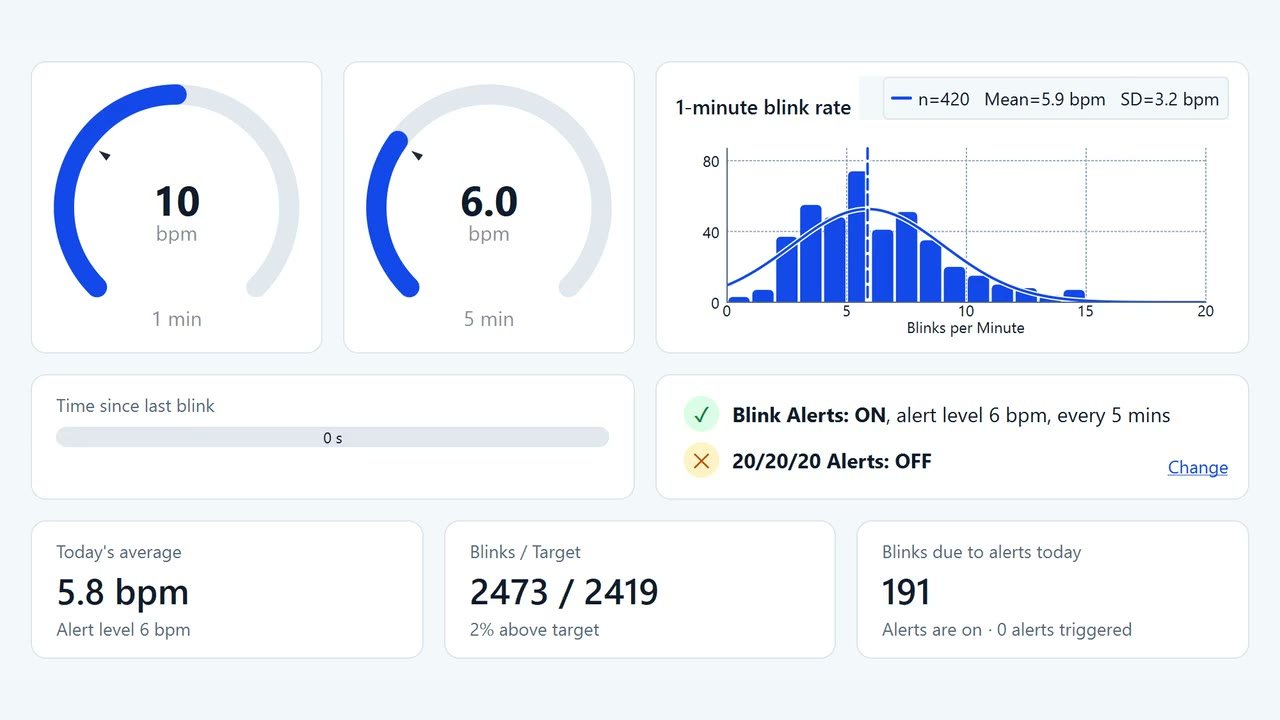
BlinkCam counts your blinks and shows your blink rate over the last minute and the last five minutes on the Dashboard, with today’s totals. It saves your blink rate every minute, so you can look back later.
3. It reminds you when your blink rate drops
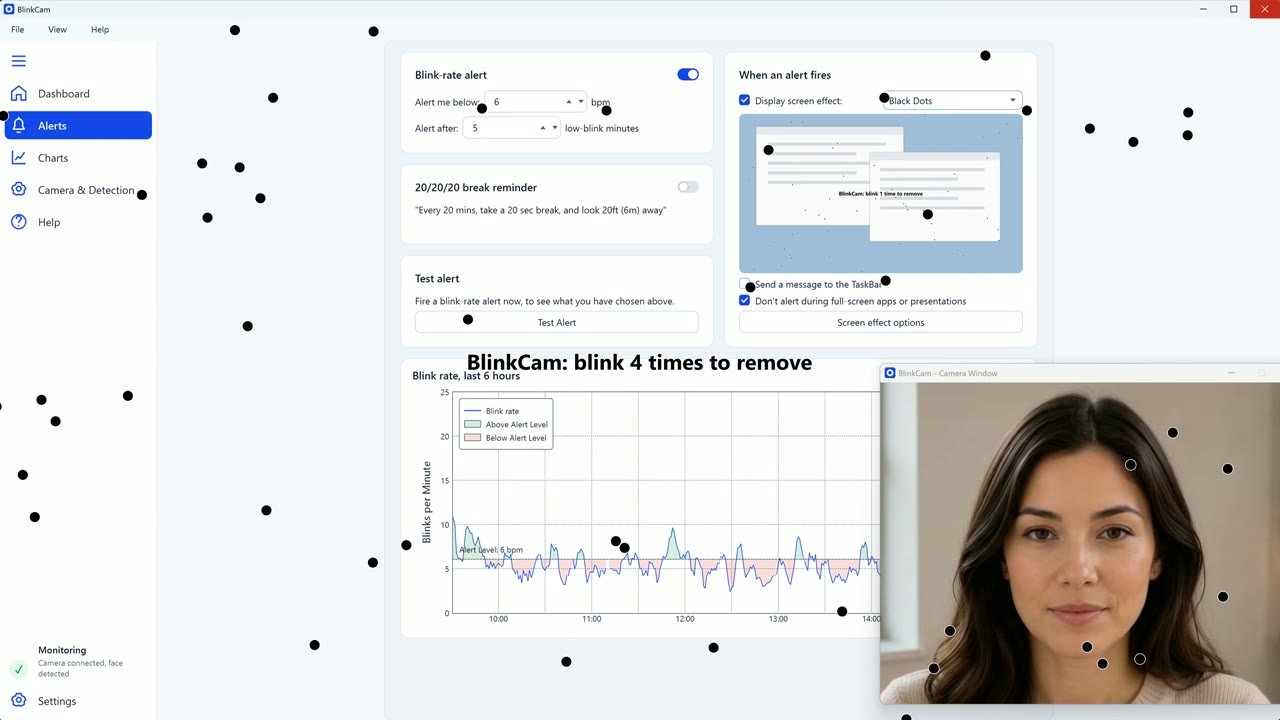
Choose an alert level that feels right for you. When your blink rate stays below it for a few minutes, BlinkCam can show a quiet notification, or a screen effect such as Black Dots that clears when you blink. You don’t need to touch the mouse or keyboard, so you can keep working. BlinkCam can also remind you to take a 20/20/20 break.
4. It shows your habits over time
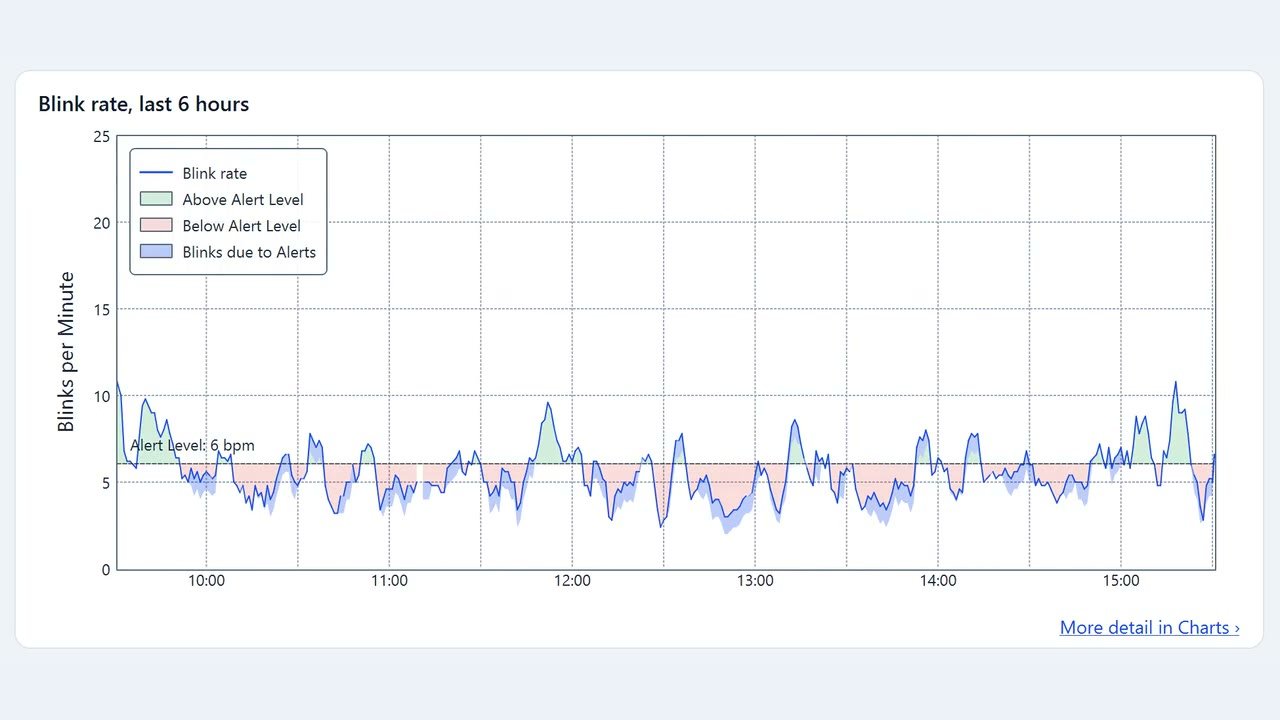
The blink rate chart zooms from the last few seconds out to your whole day. History compares today with the last 30 days, or the days you choose, and Analysis shows how your blinking changes day by day.
Your privacy
BlinkCam analyses camera images on your PC and keeps your history there. No camera images or blink data are ever sent.
BlinkCam is not a medical device and does not diagnose or treat any condition.