
BlinkCam Support
Help
How to set up BlinkCam and use each of its pages.
On this page: Quick start · Find your way around · Dashboard · Alerts · Charts · Camera & Detection · Settings · Trial and subscription · Troubleshooting
Quick start
Most people can start with the default settings. Do these four steps first.
1
Install and start your trial
Install BlinkCam from the Microsoft Store, open it, then start your 7-day free trial when asked.
2
Connect your camera
Open Camera & Detection › Camera, choose your webcam and select Connect Camera if it isn’t already connected.
3
Check your blinks are detected
Sit so your whole face is in the preview, lit from the front. When all four Setup checks are ticked, BlinkCam is counting your blinks.
4
Set your alert level
Open Alerts, choose your alert level and how you want to be reminded, then select Test Alert.
Find your way around
The sidebar on the left opens each page. Select the menu button at the top to show or hide the page names.
- Dashboard: your blink rate now, and today at a glance.
- Alerts: when and how BlinkCam reminds you to blink, and the 20/20/20 break reminder.
- Charts: History compares today with earlier days; Analysis shows how your blinking changes day by day.
- Camera & Detection: Camera, Blink Detection and Lighting, for setting up and checking detection.
- Help and, at the bottom, Settings. Above Settings, a status line shows whether BlinkCam is monitoring.
BlinkCam keeps working when its window is closed. Right-click the BlinkCam icon in the notification area of the taskbar to show or hide BlinkCam, pause the camera, turn alerts on or off, snooze them, turn on the 20/20/20 reminder, or exit BlinkCam completely. Double-click the icon to show or hide the window.
Dashboard
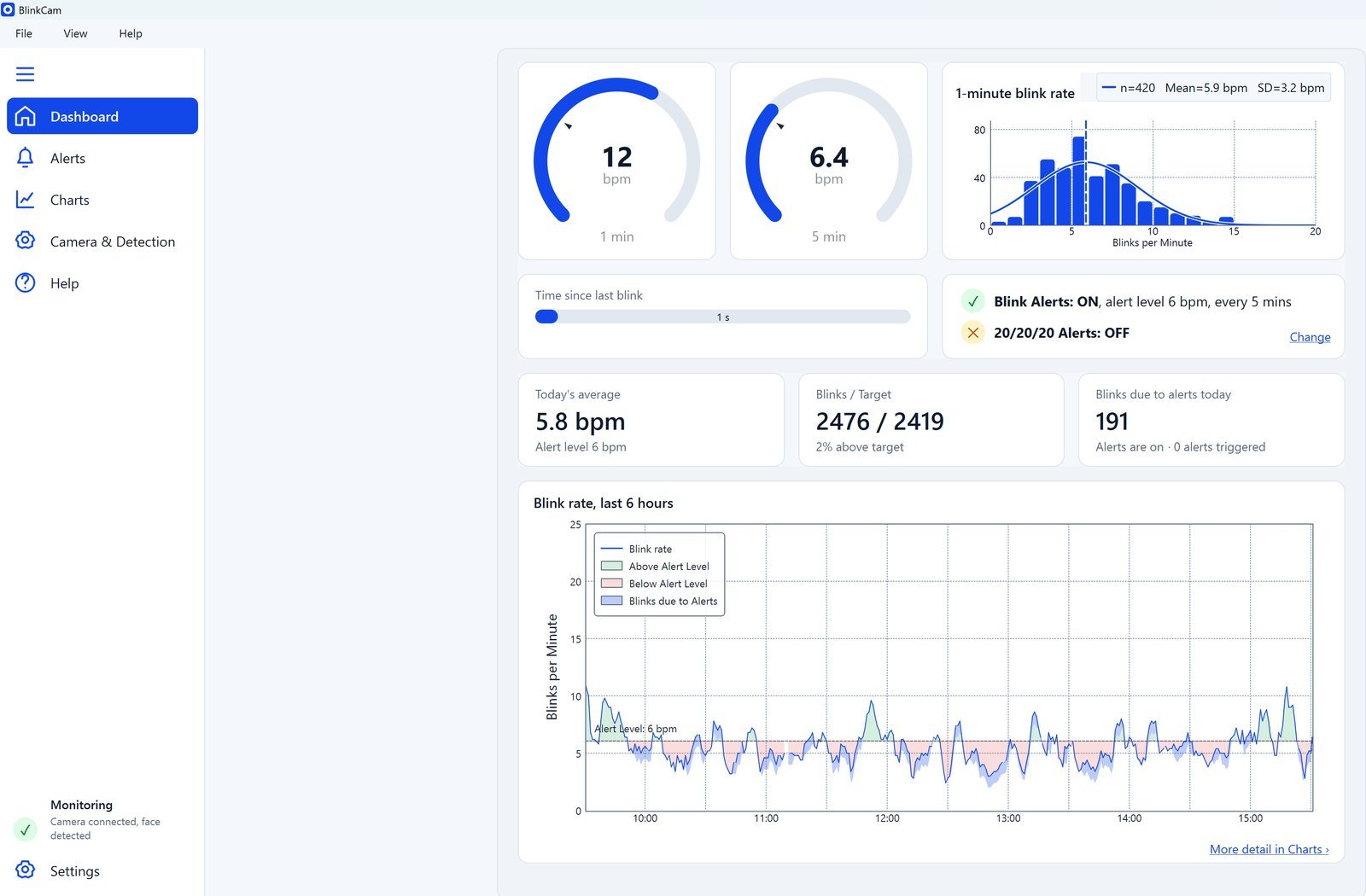
- The two dials show your blink rate in blinks per minute (bpm) over the last minute, which reacts quickly, and the last 5 minutes, which is steadier. The small mark on each dial is your alert level.
- 1-minute blink rate shows how today’s minutes are spread, with today’s mean.
- Time since last blink starts again at each blink.
- The alert status shows whether blink-rate and 20/20/20 alerts are on. Change opens Alerts.
- Today’s average, Blinks / Target (your blinks today against your alert level for the minutes your face was seen) and Blinks due to alerts today.
- The blink rate chart: turn the mouse wheel over it to zoom from the last few seconds out to the whole day. More detail in Charts opens History.
Alerts
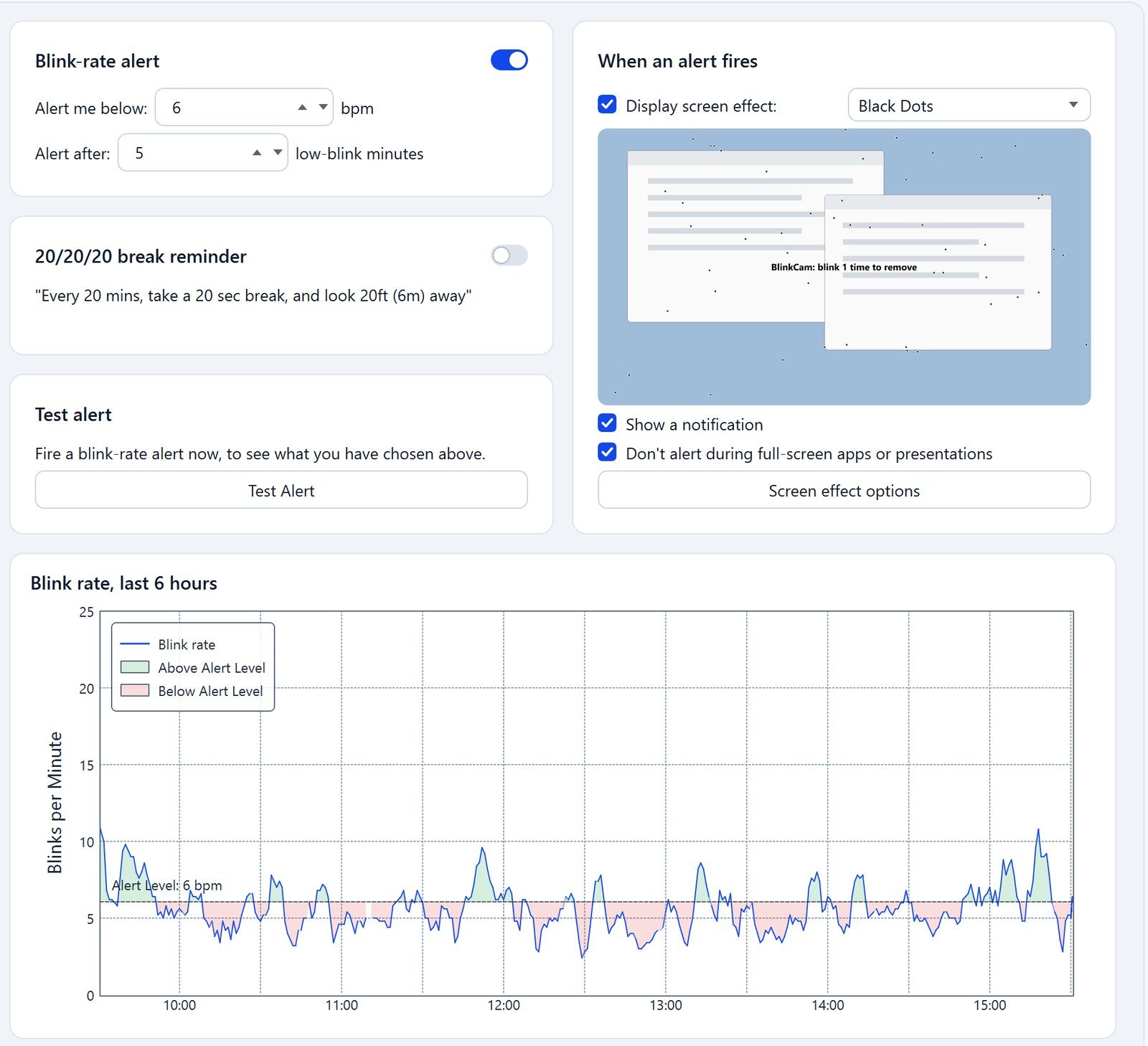
Blink-rate alert
Turn the switch on, then set Alert me below (your alert level, in blinks per minute) and Alert after (how many minutes below it before an alert). A minute counts only when BlinkCam could see your face, and the minutes don’t have to be in a row. Start with the default and adjust until alerts feel right for you.
When an alert fires
- Display screen effect: choose Black Dots, Slow Blink, Ball, Edge Vignette, Pulsing Border or Dim. The preview shows what it looks like.
- Screen effect options: make the effect interactive, so it clears when you blink a set number of times, and set how long before it closes by itself.
- Show a notification: a Windows notification in the corner of the screen, with or without a screen effect.
- Don’t alert during full-screen apps or presentations: holds alerts back while you present or watch something full screen.
20/20/20 break reminder and test alert
The 20/20/20 reminder asks you, every 20 minutes, to look at something about 20 feet (6 metres) away for 20 seconds. Test Alert fires a blink-rate alert straight away, so you can see what you have chosen.
Charts
History
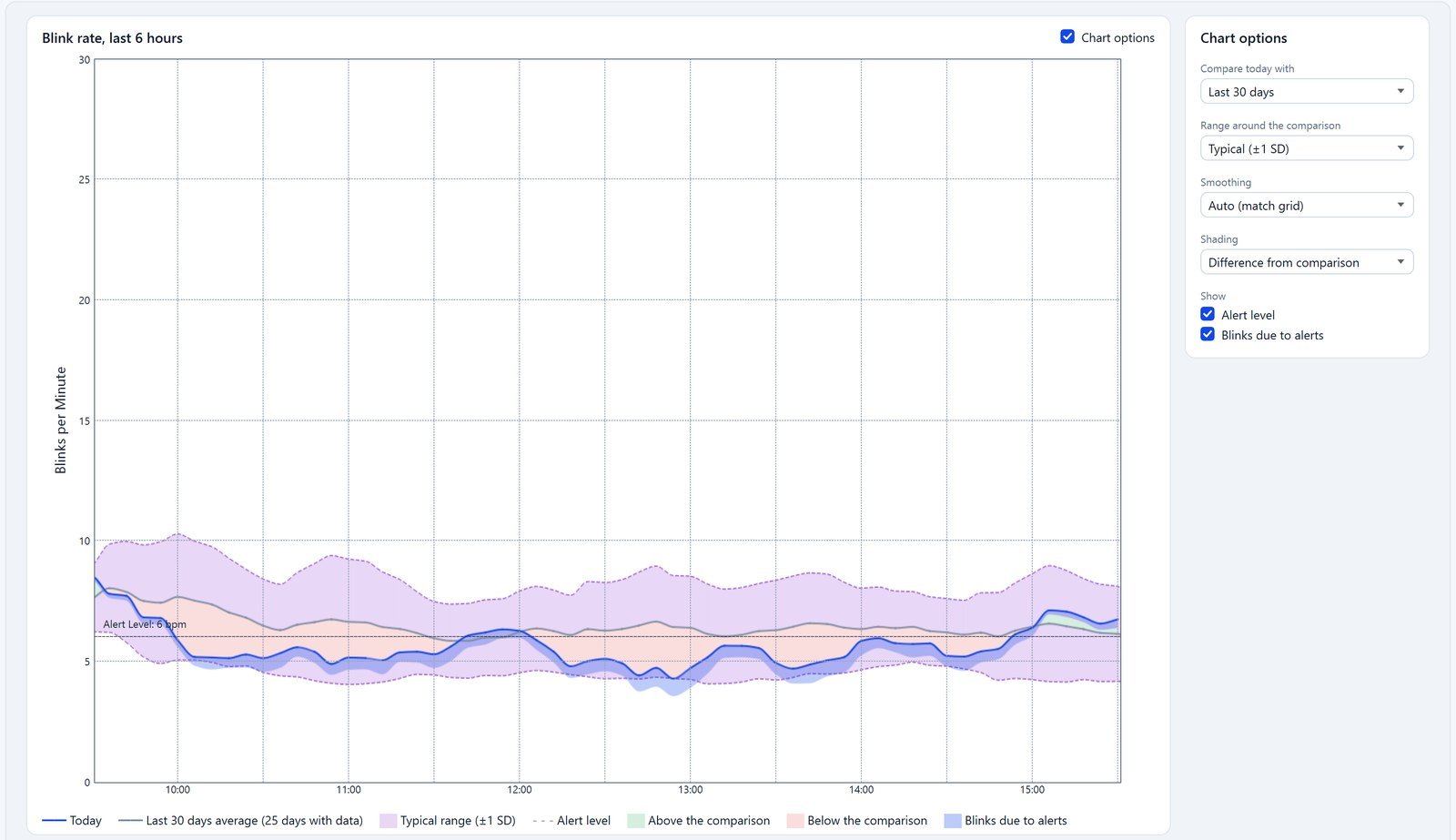
History shows today’s blink rate against earlier days. Turn the mouse wheel over the chart to zoom. Tick Chart options to choose:
- Compare today with: for example the last 30 days, or the days you choose.
- Range around the comparison: the band showing your typical range on those days.
- Smoothing: how much the lines are averaged.
- Shading: above and below your alert level, or the difference from the comparison.
- Show: the alert level line, and the part of your blink rate that came from blinks during alerts.
Analysis
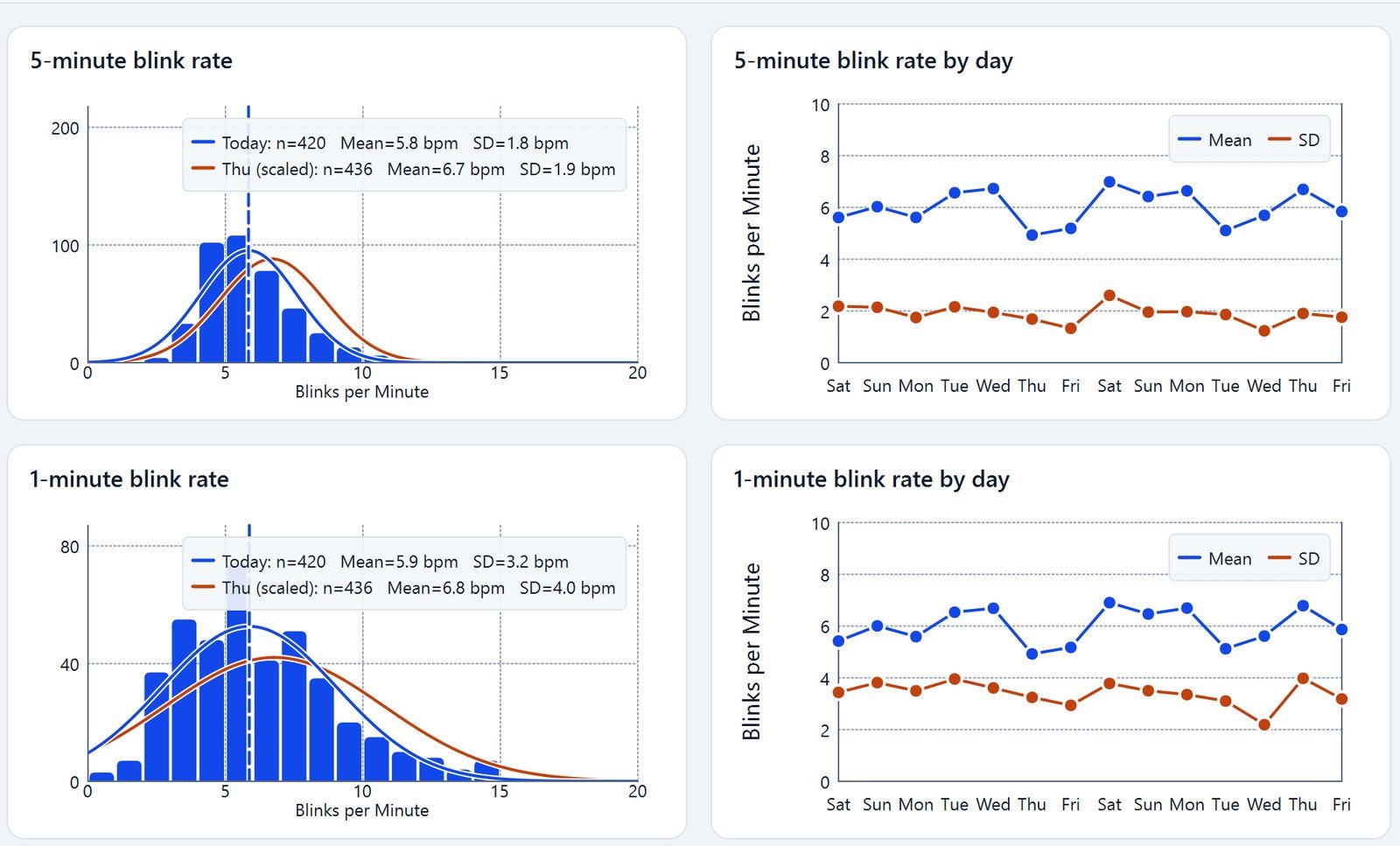
Analysis shows your 5-minute and 1-minute blink rate, blink duration, time since last blink and blink probability. The left chart of each pair shows how today’s values are spread, compared with an earlier day; the right chart shows how they change from day to day.
Camera & Detection
Camera
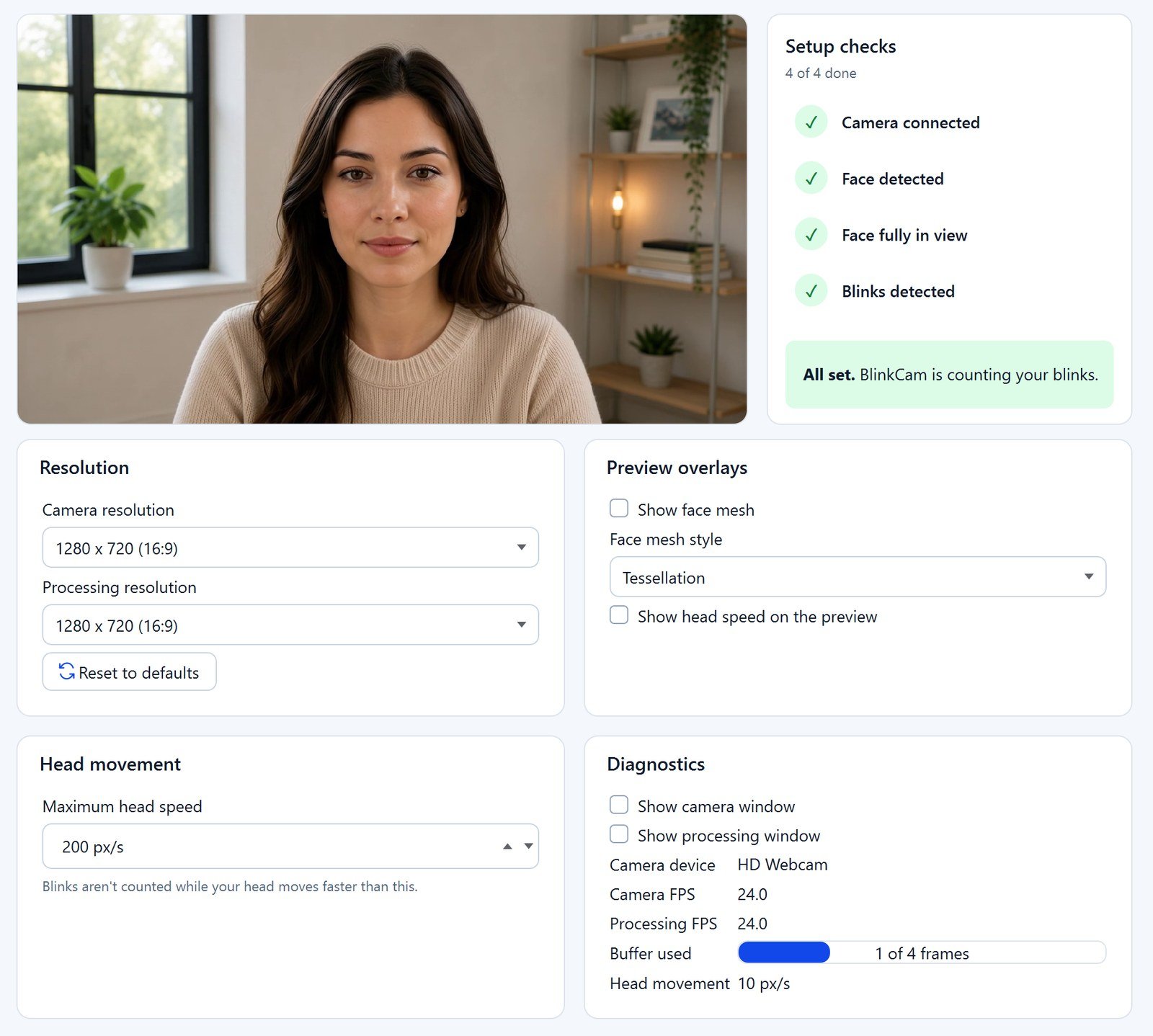
- Choose your webcam at the top. Use the refresh button if a camera you just plugged in is missing, and Connect Camera if it isn’t connected.
- Setup checks show whether the camera is connected, your face is detected and fully in view, and blinks are detected.
- Resolution: the camera resolution, and the processing resolution BlinkCam analyses. A lower processing resolution uses less of your computer. Reset to defaults puts both back.
- Preview overlays: show the face mesh, in the style you choose, and your head speed on the preview.
- Head movement: blinks aren’t counted while your head moves faster than the maximum head speed, which avoids false blinks.
- Diagnostics: separate camera and processing windows, frame rates and buffer use, useful if detection seems slow.
Blink Detection
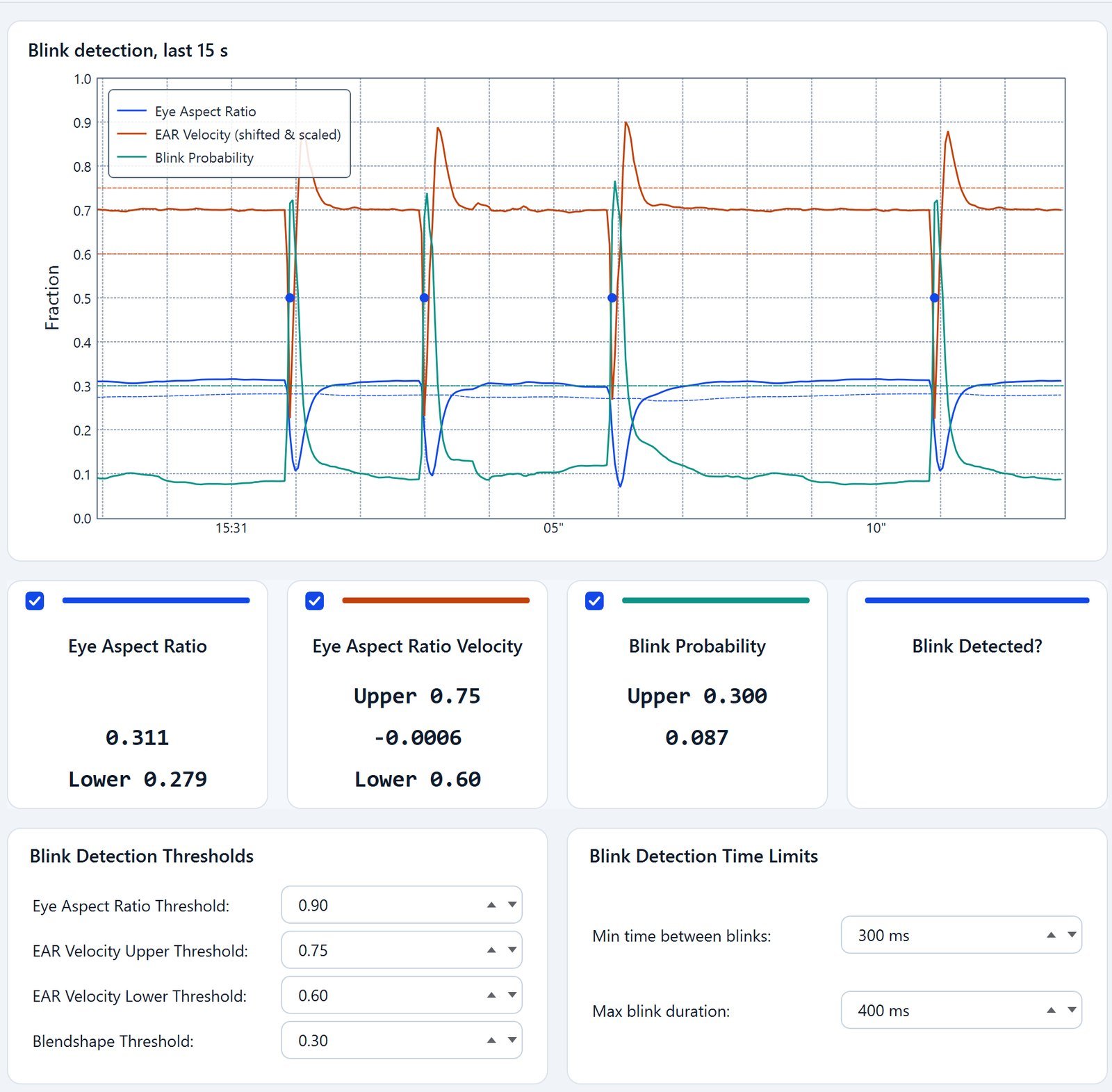
The chart shows the live signals BlinkCam uses to recognise a blink; each detected blink is marked. Turn the mouse wheel over the chart to see from 5 to 30 seconds. The defaults suit most people: fix camera position and lighting before changing anything here, and change one setting at a time.
- Eye Aspect Ratio: how open your eyes are. A blink must close them below the Eye Aspect Ratio Threshold, a fraction of your usual opening (0.90 means below 90% of it).
- Eye Aspect Ratio Velocity: how fast your eyes close and open. A blink must cross the lower threshold as they close and the upper threshold as they open.
- Blink Probability: the face model’s own blink score, which must reach the Blendshape Threshold.
- The tick box on each signal turns that test on or off. All the tests that are on must pass for a blink to count; keep at least one on.
- Min time between blinks stops one blink being counted twice, and Max blink duration leaves out long eye closures.
Lighting
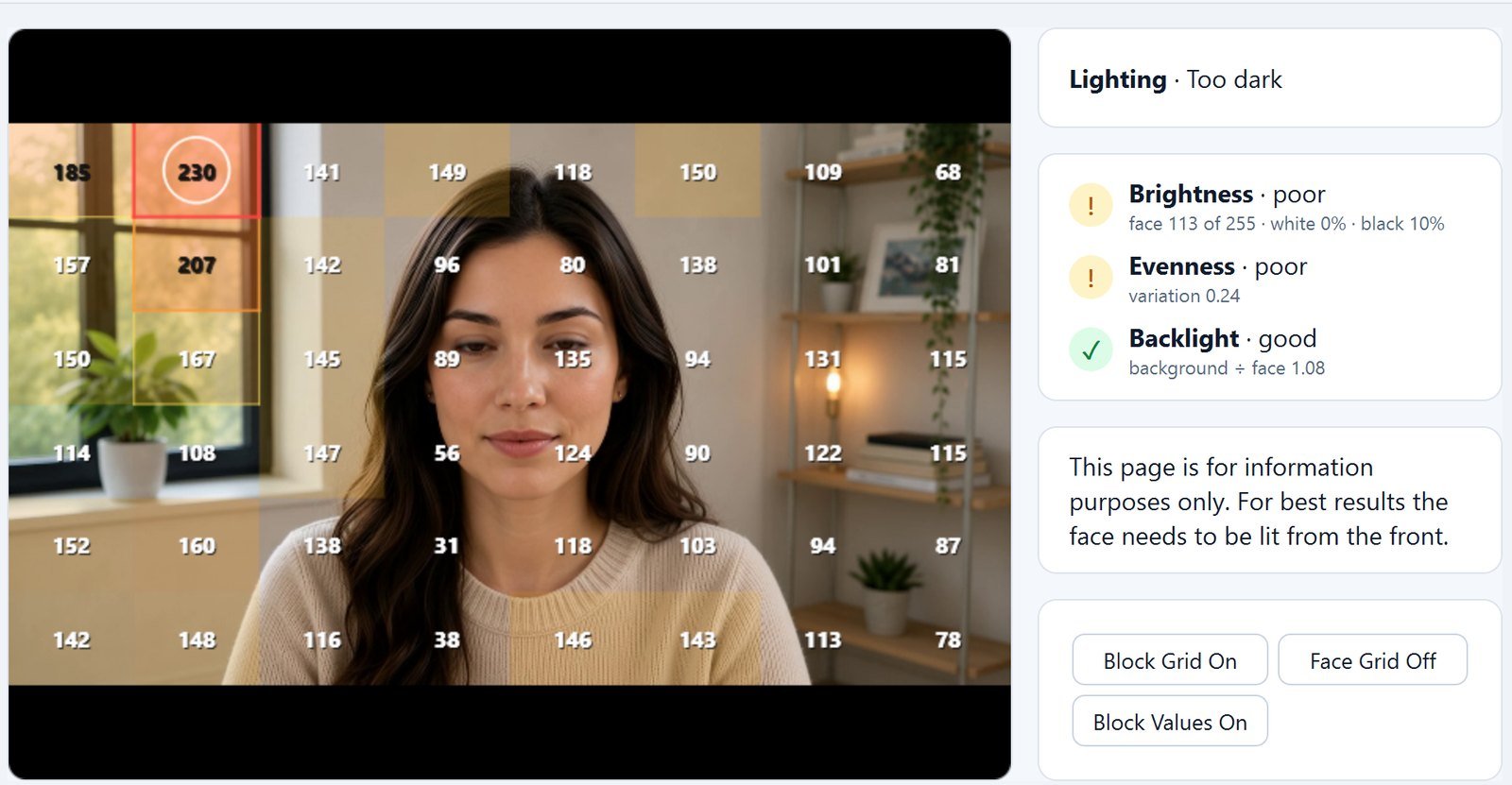
Lighting rates the light on your face and shows what to fix: Brightness (is your face too dark or too bright?), Evenness (is one side much brighter?) and Backlight (is a window or lamp behind you?). The grid buttons show the brightness of each part of the picture. For best results, light your face evenly from the front.
Settings
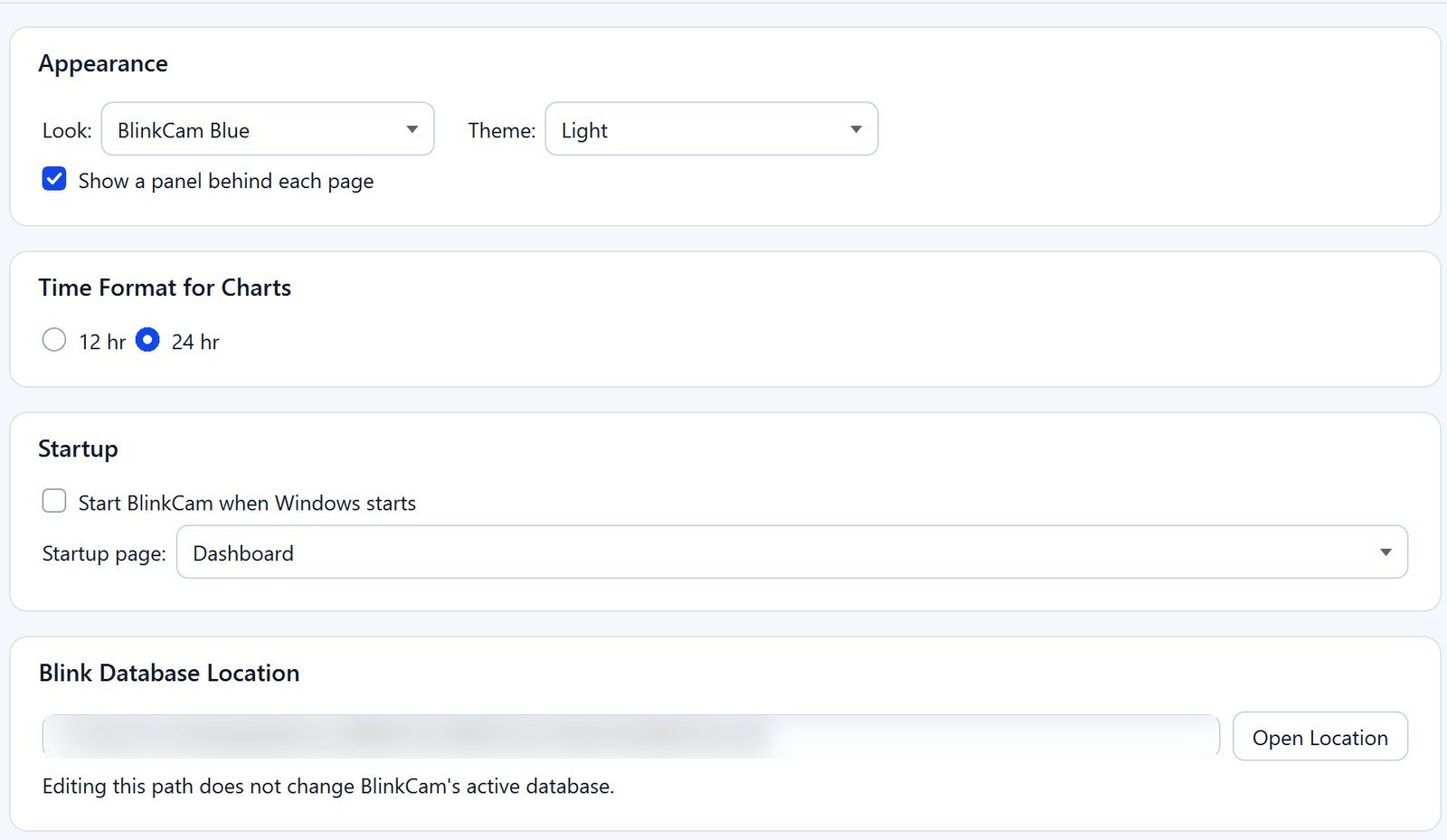
- Appearance: choose a look (BlinkCam Blue, Clinical, Fluent, Calm or Minimal) and a theme (System, Light or Dark).
- Time Format for Charts: 12-hour or 24-hour clock.
- Startup: start BlinkCam when Windows starts, and choose the page it opens on.
- Blink Database Location: where your blink history is kept. Open Location opens the folder. Uninstalling BlinkCam deletes it.
Free trial and subscription
7-day free trial
The first time you open BlinkCam, start the free trial. The Microsoft Store asks you to sign in with your Microsoft account and add a payment method. You are not charged if you cancel before the 7 days end.
Yearly subscription
After the trial, the subscription renews each year at US$14.99 until you cancel. To cancel, or to change your payment method, go to Services & subscriptions in your Microsoft account.
Troubleshooting
The camera is busy or not connected
Close other apps using the webcam. Open Camera & Detection › Camera, refresh the camera list, choose the camera and select Connect Camera. Also check that Windows camera privacy settings allow desktop apps to use the camera.
I need the camera for a video call
On recent versions of Windows 11, turn on Allow multiple apps to use camera at the same time in Windows Settings › Bluetooth & devices › Cameras › your camera › Advanced camera options. Otherwise, right-click the BlinkCam icon in the notification area of the taskbar and choose Pause Camera for the length of the call. It comes back by itself.
BlinkCam cannot see my face
Move fully into the preview, face the camera and light your face from the front. Reduce strong light behind you. The Lighting page shows what to fix.
Blinks are missed or false blinks appear
Keep your head steady and your eyes visible. Wearing glasses? Avoid lights that reflect in your lenses. Then open Blink Detection and watch the signals while you blink normally before changing any thresholds.
Alerts do not appear
Check that the blink-rate alert is on and a notification or a screen effect is chosen, then select Test Alert. Check that alerts aren’t snoozed (tray icon › Resume Alerts), and that you aren’t in a full-screen app with Don’t alert during full-screen apps or presentations on. BlinkCam also needs to see your face to count a low blink-rate minute.
BlinkCam says I have no subscription
Check that the Microsoft Store is signed in with the Microsoft account you subscribed with, and that the subscription is active under Services & subscriptions in your Microsoft account. Then restart BlinkCam. If the problem continues, see the FAQ or contact us.